The Data Template Definition:
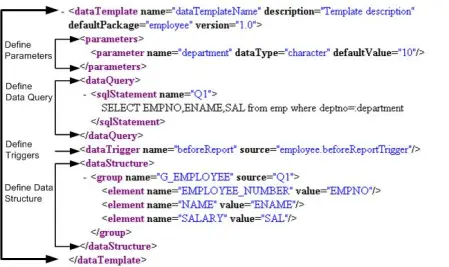
The data template is an XML document that consists of four basic sections:
- define parameters,
- define triggers,
- define data query,
- define data structure
1] Parameters Section:
A parameter is a variable whose value you can set at runtime. Parameters are especially useful for modifying SELECT statements and setting PL/SQL variables at runtime. However, the Parameters section of the data template is optional.How to Define Parameters:
1
2
3
4
| <parameters><parameter name="P_PERIOD_FROM" dataType="character" /><parameter name="P_PERIOD_TO" dataType="character" /></parameters> |
How to Pass Parameters:
To pass parameters, (for example, to restrict the query), use bind variables in your query. For example:SELECT *
FROM apps.gl_balances glb
WHERE glb.period_name BETWEEN :P_PERIOD_FROM AND :P_PERIOD_TO;
2] Data Query Section:
The <dataQuery> section of the data template is required.How to Define SQL Queries
The <sqlStatement> element is placed between the open and close dataQuery tags. The <sqlStatement> element has a related attribute, name. It is expressed within the <sqlStatment> tag. The query is entered in the CDATA section.
1
2
3
4
5
6
7
| <dataQuery><sqlStatement name="Q1"><![CDATA[SELECT *FROM apps.gl_balances glbWHERE glb.period_name BETWEEN :P_PERIOD_FROM AND :P_PERIOD_TO]]></sqlStatement></dataQuery> |
Lexical References:
You can use lexical references to replace the clauses appearing after SELECT, FROM, WHERE, GROUP BY, ORDER BY, or HAVING. Use a lexical reference when you want the parameter to replace multiple values at runtime.Create a lexical reference using the following syntax:
¶metername
Define the lexical parameters as follows:
• Before creating your query, define a parameter in the PL/SQL default package for each lexical reference in the query. The data engine uses these values to replace the lexical parameters.
• Create your query containing lexical references.
1
2
3
4
5
6
7
| <dataQuery><sqlStatement name="Q_Lexical"><![CDATA[ &p_query ]]></sqlStatement></dataQuery><dataTrigger name="beforeReport" source="xxfin_test_pkg.beforeReport" /> |
p_query VARCHAR2(2000) :=
‘SELECT * apps.gl_balances glb
WHERE glb.period_name BETWEEN :P_PERIOD_FROM AND :P_PERIOD_TO';
How to Define a Data Link between Queries:
If you have multiple queries, you must link them to create the appropriate data output. In the data template, there are two methods for linking queries: using bind variables or using the <link> element to define the link between queries.The following example shows a query link using a bind variable:
1
2
3
4
5
6
7
8
9
10
11
12
13
14
| <dataQuery><sqlStatement name="Q1"><![CDATA[SELECT PARENT_COL FROM XXTEST_LINK_TABLE1]]></sqlStatement></dataQuery><dataQuery><sqlStatement name="Q2"><![CDATA[SELECT CHILD_COL FROM XXTEST_LINK_TABLE2]]></sqlStatement></dataQuery><link name="TEST_LINK" parentQuery="Q1" parentColumn="PARENT_COL"childQuery="Q2" childColumn="CHILD_COL"/> |
3] Using Data Triggers:
Data triggers execute PL/SQL functions at specific times during the execution and generation of XML output. Using the conditional processing capabilities of PL/SQL for these triggers, you can do things such as perform initialization tasks and access the database.Data triggers are optional, and you can have as many <dataTrigger> elements as necessary. The <dataTrigger> element has a set of related attributes. These are expressed within the <dataTrigger> tag.
For example:
1
2
| <dataTrigger name="beforeReport1" source=" xxfin_test_pkg.beforeReport()"/><dataTrigger name="beforeReport2" source=" xxfin_test_pkg.beforeReport(:Parameter)"/> |
- Name: The event name to fire this trigger.
- Source: The PL/SQL <package name>.<function name> where the executable code resides.
4] Data Structure Section:
In the data structure section you define what the XML output will be and how it will be structured. The complete group hierarchy is available for output. You can specify all the columns within each group and break the order of those columns; you can use summaries, and placeholders to further customize within the groups.Sample Data Structure:
1
2
3
4
5
6
7
8
9
10
11
12
13
14
15
16
17
18
19
20
21
22
23
24
| <dataStructure><group name="GROUP_1" source="Q1"> <element name="LEDGER_ID" value="LEDGER_ID" /> <element name="LEDGER_SHORT_NAME" value="LEDGER_SHORT_NAME" /> <element name="LEDGER_DESCRIPTION" value="LEDGER_DESCRIPTION" /> <element name="LEDGER_NAME" value="LEDGER_NAME" /> <element name="LEDGER_SUM_BAL_DR" value="ACCT_SUM_BAL_DR" function="SUM()" /> <element name="LEDGER_SUM_BAL_CR" value="ACCT_SUM_BAL_CR" function="SUM()" /><group name=" GROUP_2" source="Q1"> <element name="CODE_COMBINATION_ID" value="CODE_COMBINATION_ID" /> <element name="ACCOUNTING_CODE_COMBINATION" value="ACCOUNTING_CODE_COMBINATION" /> <element name="CODE_COMBINATION_DESCRIPTION" value="CODE_COMBINATION_DESCRIPTION" /> <element name="ACCT_SUM_PR_DR" value="PERIOD_NET_DR" function="SUM()" /> <element name="ACCT_SUM_PR_CR" value="PERIOD_NET_CR" function="SUM()" /> <element name="ACCT_SUM_BAL_DR" value="BEGIN_BALANCE_DR" function="SUM()" /> <element name="ACCT_SUM_BAL_CR" value="BEGIN_BALANCE_CR" function="SUM()" /><group name=" GROUP_3" source="Q1"> <element name="PERIOD_YEAR" value="PERIOD_YEAR" /> <element name="PERIOD_NUMBER" value="PERIOD_NUMBER" /> <element name="PERIOD_NAME" value="PERIOD_NAME" /> </group> </group> </group></dataStructure> |
How to Call a Data Template:
There are two methods for calling the data engine to process your data template:• Concurrent Manager
• Data Engine Java APIs
Before you can use either of these methods, you must first register your data template in the Template Manager as a Data Definition. After that you attached the RTF template to that data definition.

Calling a Data Template from the Concurrent Manager:
To use the concurrent manager to execute your data template, you must register a Concurrent Program, using the define Concurrent Programs form: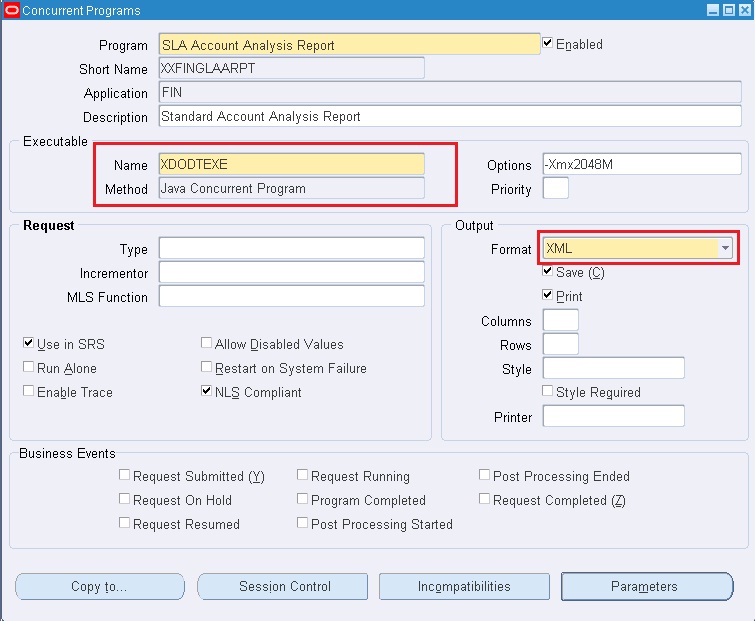
Executable Name Enter the XML Publisher data engine executable: XDODTEXE
Output Format Select “XML” as the output format.
Note: We do not need to create a concurrent executable as we use a seeded executable XDODTEXEConcurrent Program – Parameters:
For each parameter in the Data Template, define a parameter in the concurrent program. The Data Template parameter name should match the concurrent program parameter token
Few tips for best practices:
Performing operations in SQL is faster than performing them in the data template or PL/SQL. It is recommended that you use SQL for the following operations:
To maximize performance when building data queries in the data template: XML Publisher tests have shown that using bind variables is more efficient than using the link tag.
- Use a WHERE clause instead of a group filter to exclude records.
- Perform calculations directly in your query rather than in the template.
The dataStructure section is required for multiple queries and optional for single queries. If omitted for a single query, the data engine will generate flat XML.


